Your screenshot,
framed properly.
Wrap it in a real device, set it on a ground, and export at the exact pixel size the App Store asks for.
Download on theApp StoreFreeThe whole process
Four steps, then it is done
- 01
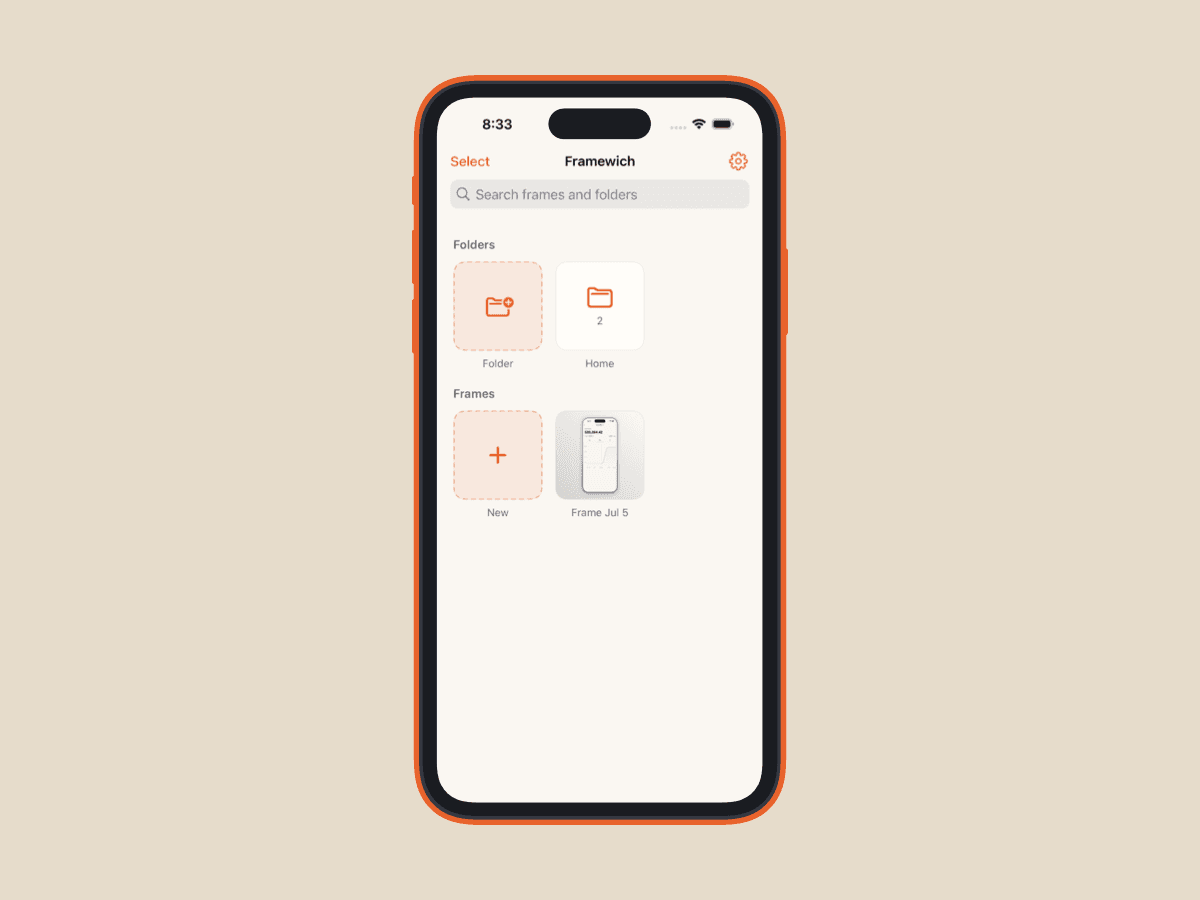
Import
Pick up to twenty screenshots from your library at once, or share a single one straight to Framewich from the screenshot preview.
- 02
Frame
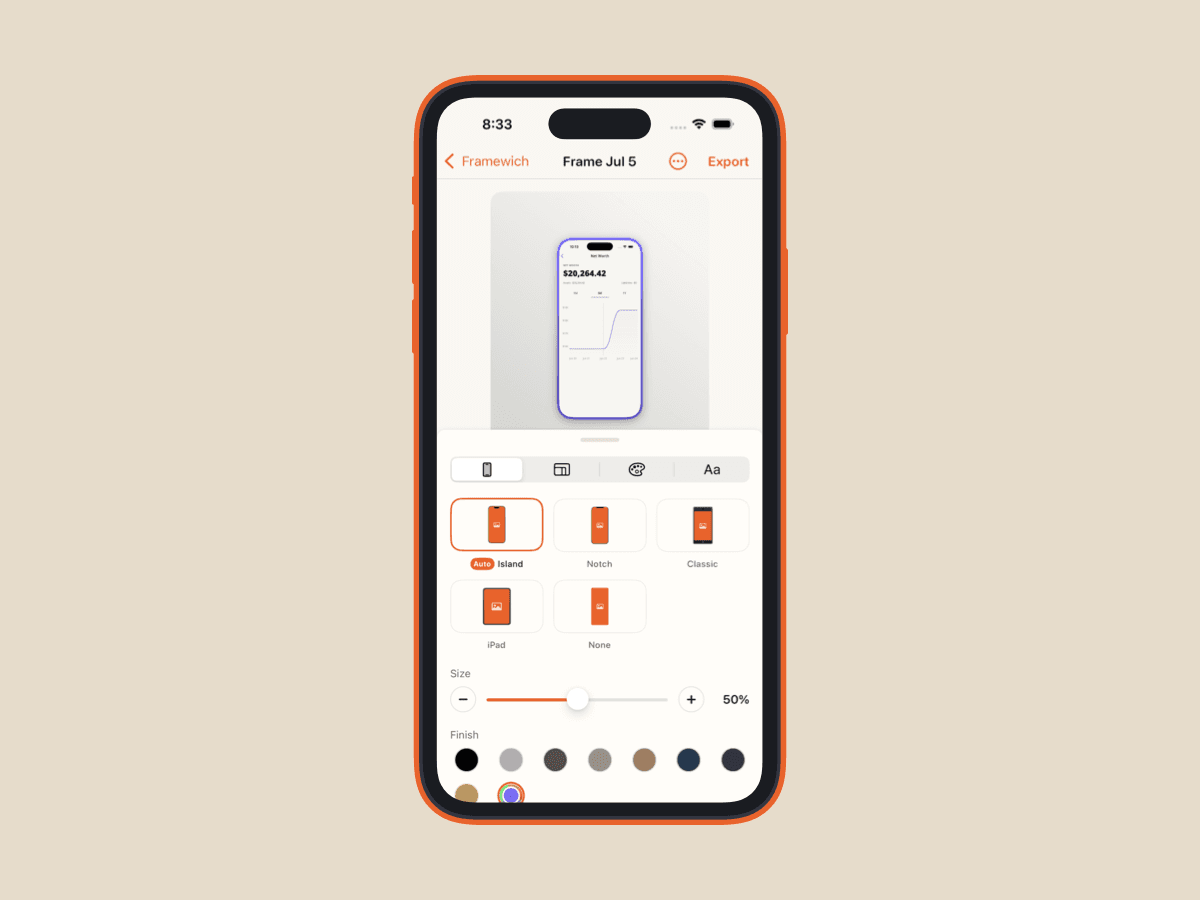
The device gets detected and the screenshot goes into the matching bezel. From there, set the finish, the size, the corner radius and the shadow.
- 03
Style
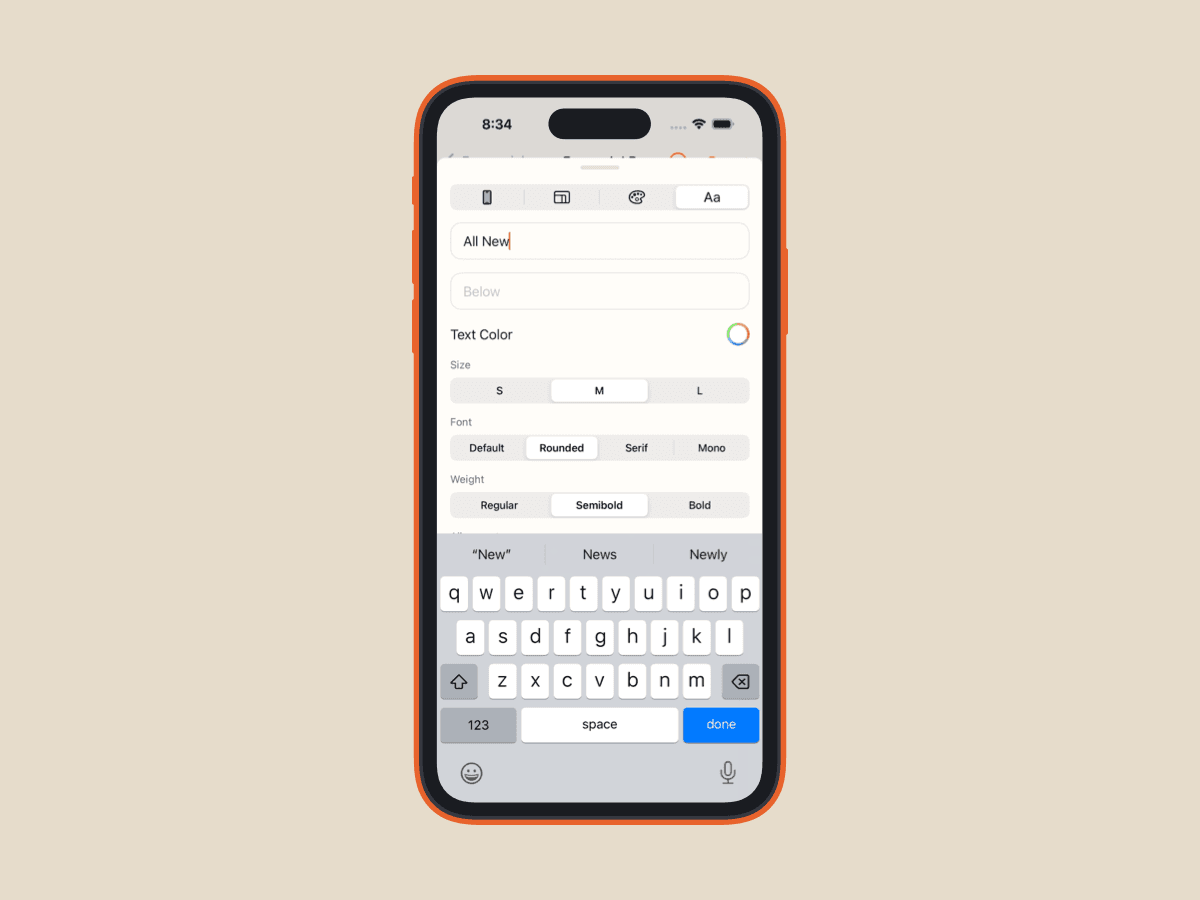
Choose a canvas size, build a background out of the colors already in your screenshot, and write captions above or below the device.
- 04
Export
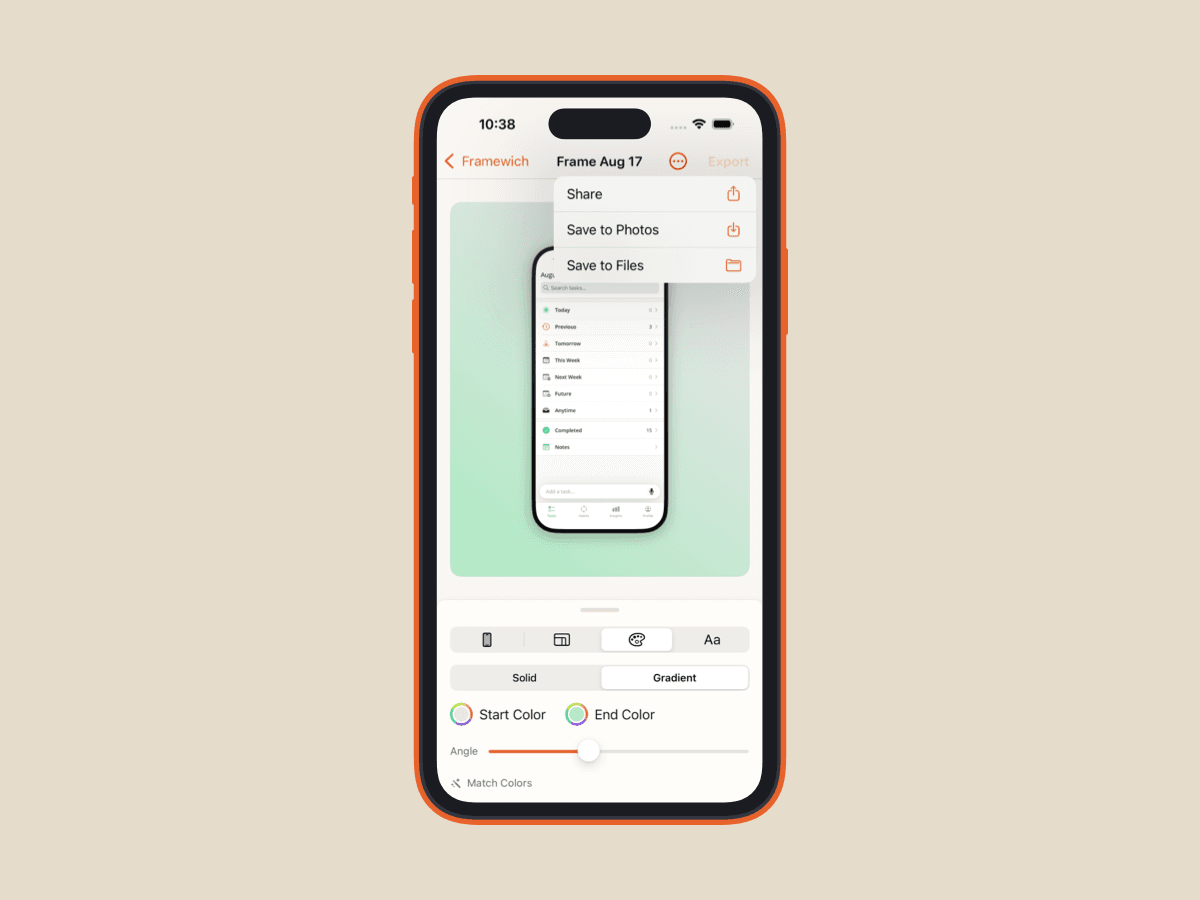
Share it, save it to Photos, or write it to Files. One frame or the whole folder, at App Store resolution.
Output
Every canvas, drawn to scale
The App Store presets render at their literal pixel dimensions, so what comes out of Framewich uploads to App Store Connect without a resize step.
App Store, exact pixels
iPhone 6.9"
1290 × 2796
iPhone 6.5"
1284 × 2778
iPad 13"
2048 × 2732
Everywhere else, rendered at 3x
Square
1:1
Portrait
4:5
Story
9:16
Wide
16:9
Classic
4:3
There is also Original, which keeps whatever shape your screenshot already had.
Who uses it
One screenshot, every place it has to go
- 01Shipping to the App Store
- Render at the pixel sizes App Store Connect asks for, then push one frame styling across the folder so the whole screenshot set reads as a set.
- 02Showing your work
- Put a design in a real device, on a background chosen to suit it, and post it somewhere without it looking like a raw screen grab.
- 03Launch and social posts
- Square, 4:5 and 9:16 canvases mean one screenshot covers a feed, a story and a landing page without any recropping.
- 04Docs and changelogs
- Caption a screenshot above or below the device so the image still explains itself wherever it gets pasted.
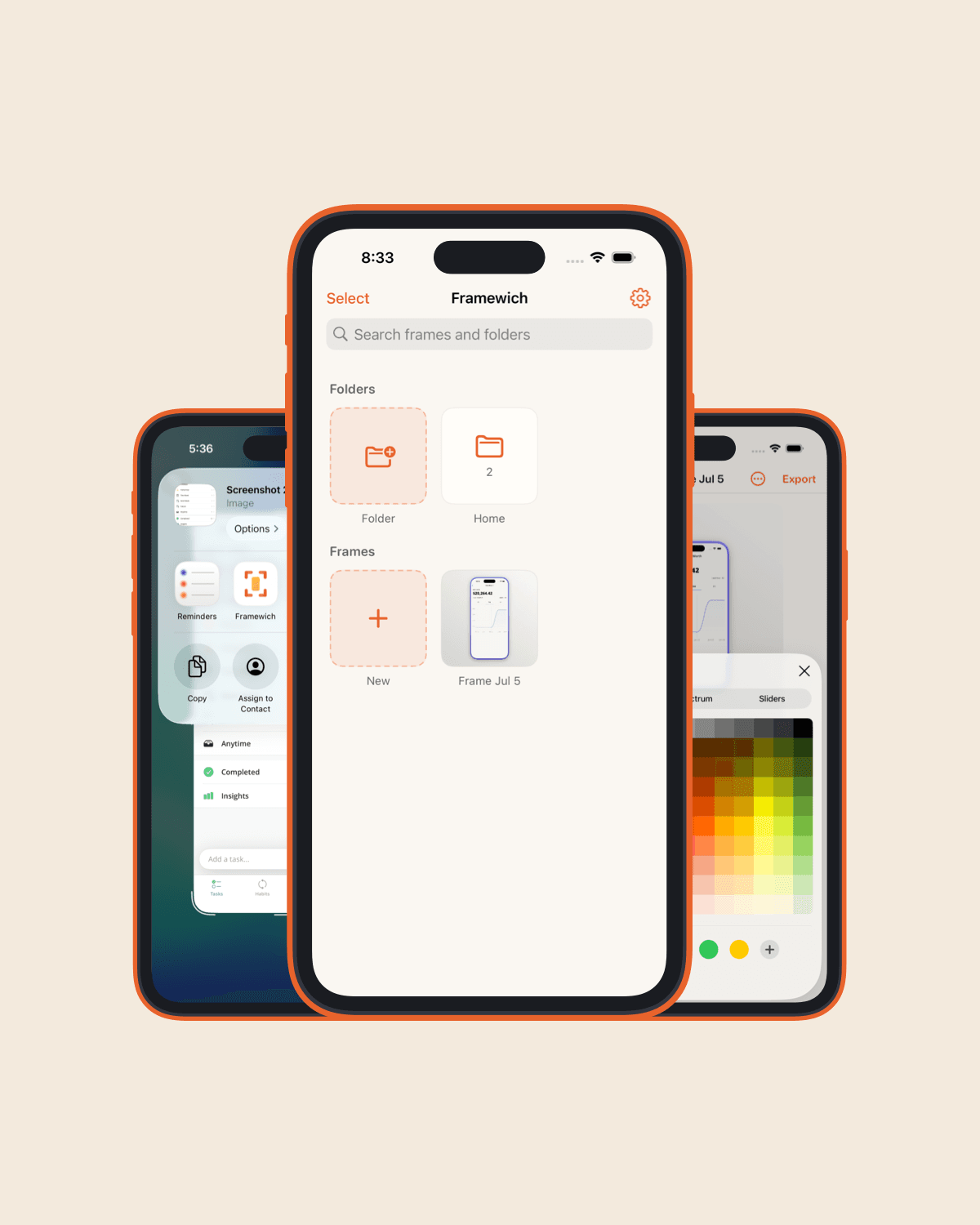
Fig. 2 One folder style, five frames
Index
Twelve things it does
12entries, none of them locked behind anything
- 01Knows the device already
- Drop in a screenshot and Framewich reads its resolution, then picks the matching frame. The match arrives badged Auto. Override it in one tap.
- 02Five device frames
- Dynamic Island, notch, classic home button, iPad, or no frame at all. Every bezel is vector art, so it holds up at any export size.
- 03Nine finishes, or your own
- Space Black, Silver, Titanium, Natural, Desert, Blue, Deep Purple, Gold. Or pick any color and the app derives the shading for you.
- 04App Store sizes, exactly
- Render straight to 1290 by 2796, 1284 by 2778, or 2048 by 2732. Those are the pixel dimensions App Store Connect asks for, so nothing needs resizing.
- 05Backgrounds that fit
- Solids, gradients, a full 360 degree angle dial, twelve presets. Match Colors reads the palette out of your screenshot and builds backgrounds from it.
- 06Captions above and below
- Four typefaces, three weights, three sizes, any color, three alignments. Text is sized as a fraction of the canvas, so it scales with the export.
- 07Style a whole folder at once
- Get one frame right, then push its background, finish, shadow, size and caption styling onto every other frame in the folder. Screenshots and text stay put.
- 08Batch export
- Multi-select, or drag across the grid. Send the set to Photos or Files at full quality with live progress. Filenames come from your frame names.
- 09Straight from the share sheet
- Take a screenshot, tap the preview, share it to Framewich. The app opens directly into the editor with the image already framed.
- 10Folders, search, reorder
- Nest folders five levels deep, search by name, drag to reorder. Swap a screenshot for a newer one and every styling choice stays where it was.
- 11No account, works offline
- No email, no password, no sign-up screen. Nothing to set up before you start, and editing and exporting keep working with no signal at all.
- 12No watermark, no ads
- Every frame, finish, canvas and export option is open to everyone. Nothing is locked, nothing is stamped, nothing is waiting to upsell you.
Price
$0forever
No subscription, no in-app purchase, no ads, and nothing stamped on your exports. The iOS app you can download today is the whole product.
- 01All five device frames
- 02All nine bezel finishes, plus custom colors
- 03App Store canvas presets
- 04Backgrounds, gradients and Match Colors
- 05Captions above and below
- 06Folders, search and reordering
- 07Batch export to Photos or Files
- 08Replace a screenshot without losing its styling
Questions
The things people ask first
Framewich for iOS
Take a screenshot. Make it worth looking at.
Free on the App Store for iPhone and iPad, running iOS 17 or later.
Download on theApp StoreFree